
The short answer
| Lever | Effect on a full-resolution color scan |
|---|---|
| Lower the export resolution | The big one: a PDF 3 to 6 times smaller, measured on real captures |
| Grayscale or black-and-white filter | Much smaller for text documents, and often sharper text as a bonus |
| Export a JPEG instead of a PDF for a single page | Tens of times smaller: roughly 180 KB against 3 MB at the same resolution |
| A JPEG quality setting on a PDF export | Often nothing: PDF pages built with the platform PDF writer are stored losslessly |
| An online compress-PDF service | Uploads the document first and re-encodes the pages; results vary |
| Fewer pages, tighter crop | Proportional, and free |
That is the two-minute version. The rest of this guide explains where the megabytes come from, why the obvious slider does nothing, and the measured file sizes at each setting so you can pick one deliberately.
Why scanned PDFs are so large
A scan from a phone is a photograph of a page. A current camera captures around twelve million pixels, and every one of them has three color channels. A PDF page built from that image carries all of it. When the page image is stored losslessly, which is how Android's built-in PDF writer stores drawn bitmaps, a single color page of printed text comes to roughly 19 MB. Five pages is close to 100 MB. Most email services cap attachments somewhere around 20 to 25 MB, and some corporate mail servers lower.
None of that resolution is doing anything useful for a document. Printed text is comfortably legible at 130 to 150 dots per inch, and a full-resolution capture of a Letter page is closer to 370. The file is large because it is a photograph, not because the document needs it.
How DocuScanr handles it: before building the export size feature, we measured real 12-megapixel color captures of printed documents through the exact code path the app uses to write PDFs. The averages per page: about 19.2 MB at full resolution, 6.0 MB with the long edge capped at 2048 pixels, and 3.1 MB capped at 1440 pixels. The same pages as JPEG: 2.96 MB, 555 KB, and 179 KB. Those are the numbers behind every recommendation on this page.
The setting that does nothing
The instinct is to look for a JPEG quality slider, because that is what shrinks photos. For PDF output it often has no effect, and it is worth understanding why. A PDF page is a container; the app draws the page image into it, and the PDF library decides how to store that image. Android's platform PDF writer stores drawn bitmaps losslessly (Flate compression, the same family as ZIP), so there is no JPEG quality to adjust. You can drag the slider from 100 to 50 and the file will not move a byte.
The tell is easy to spot in any app: change the quality setting, export twice, and compare the sizes. If they match, the pages are stored losslessly and the only lever left is resolution.
Resolution is the lever
Capping the long edge of each page at a fixed pixel count is what actually shrinks a scanned PDF, and the trade-off is easy to reason about. At 1440 pixels on the long edge, a Letter page works out to about 130 dots per inch: fully readable for ordinary document text, and the setting to use when the file has to travel by email. At 2048 pixels, about 185 dots per inch, fine print and small handwriting keep more detail for a file that is still a third of full size.
The detail that separates a good implementation from a careless one is the order of operations. If an app recognizes text (to make the PDF searchable) or composites annotations, that work should happen at full resolution and the downscale should be the last step. Downscale first and the recognizer reads a blurrier page, so the searchable layer under a smaller file is worse than it needs to be.
| Export size | Long edge | PDF per page | JPEG per page |
|---|---|---|---|
| Original | 4032 px (as captured) | 19.2 MB | 2.96 MB |
| Medium | 2048 px (185 DPI on Letter) | 6.0 MB | 555 KB |
| Small | 1440 px (130 DPI on Letter) | 3.1 MB | 179 KB |
Approximate averages measured over real color captures of printed documents. Grayscale and black-and-white pages come out considerably smaller than these figures.
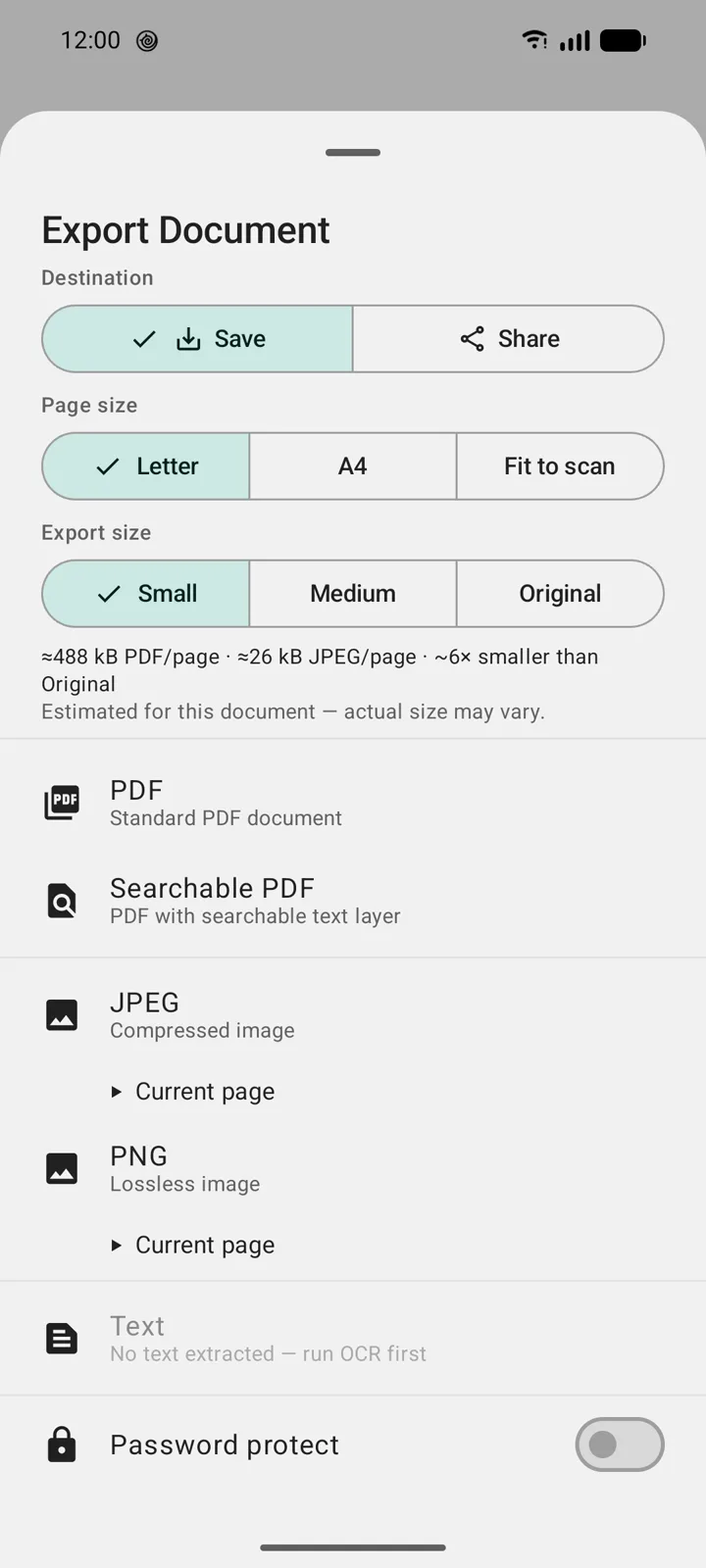
How DocuScanr handles it: the export sheet has an Export size choice of Small, Medium, or Original, with a live estimate for the document you are exporting (approximate PDF and JPEG size per page, and how many times smaller than Original). Settings holds the default. The cap applies to PDF, searchable PDF, JPEG, and PNG exports, and it is applied last: text recognition, annotation compositing, and rotation all run at full resolution first, and the recognized word positions are scaled to match the smaller page. Original is a true pass-through with no resampling at all. The feature is free.
Color, grayscale, black and white
Resolution sets the pixel count; the filter sets how much information each pixel carries, and that matters just as much for lossless storage. A color photograph of a page is full of subtle shading that compresses poorly. Grayscale drops two of the three channels. A true black-and-white (binarized) page reduces to two values, which compresses extremely well and, for forms, receipts, and typed text, usually looks cleaner than the original photo. For a text document that needs to be small, black and white at Small is the floor.
How DocuScanr handles it: the Grayscale filter is free. The B&W filter uses Sauvola binarization, an adaptive method that copes with uneven lighting and shadows far better than a single global threshold, and is part of Pro. Filters are baked into the page image itself, so they shape every export of that document.
PDF or image?
For a single page that just needs to be seen, a JPEG is the smaller choice by a wide margin: at Small, about 180 KB against about 3 MB for the same page as a PDF. Multi-page documents, anything that needs a searchable text layer, and anything a recipient will print are better as PDF. PNG is lossless and large (about 13 MB for a full-resolution color page); it is the right choice for a diagram or a screenshot, not for a photographed document.
What compression tools quietly get wrong
Uploading the document to shrink it
Compress-PDF websites work by receiving your file, re-encoding it on a server, and sending back a smaller one. For a scan of a contract or a medical record, the first step is the problem. Our guide on where scanner apps send your documents covers how to tell what any app does with your files; the same question applies to any service that offers to make a file smaller.
Lossy on top of lossy
Most compressors shrink a PDF by re-encoding its page images as lower-quality JPEGs. Applied to text, that produces the familiar halo of artifacts around letters, and it compounds every time the file goes through another tool. Downscaling a clean image once, at export, avoids the ringing entirely.
A slider that does not apply
Covered above: a JPEG quality control on a PDF export whose pages are stored losslessly is decoration. The size test (export twice at different settings) tells you in a minute whether a given control does anything.
Shrinking before recognizing
An app that downscales the page and then runs text recognition on the smaller image produces a searchable PDF whose hidden text is less accurate than it should be. The visible page looks fine; the search results and copied text are where it shows.
Confusing page size with file size
A PDF page size setting (Letter, A4, fit to scan) changes the paper dimensions the page is drawn on, not the number of pixels in the image. Switching from Letter to A4 will not make the file smaller.
Before you send it
- Pick Small for email, Medium when fine print matters, Original only when the recipient needs full resolution.
- Use grayscale or black and white for text documents; keep color for anything where color carries meaning.
- Single page, no text layer needed: consider a JPEG instead.
- If the document is sensitive, password protect it on the phone before it travels; the encryption adds nothing meaningful to the size.