
The short answer
| Method | What actually protects the file |
|---|---|
| A free browser-based password tool | Encryption is real, but the unprotected PDF is uploaded first; protection of that copy is a retention promise |
| A permissions-only password (no printing, no copying) | Nothing: the file opens without a password and the restrictions are flags any PDF tool can strip |
| Legacy 40-bit RC4 encryption | A lock that is broken outright, whatever the password |
| AES-256 with an open password, applied on the device | The file is unreadable without the password, and no copy ever left the phone |
| Any of the above, with the password in the same message as the file | Protection against nobody who can read the message |
That is the two-minute version. The rest of this guide explains the two kinds of PDF password, why the online route defeats the purpose for sensitive files, and the exact steps for locking a scan on an Android phone.
What a PDF password actually does
The PDF format has two passwords, and the difference matters more than any other detail on this page. The open password (the user password) encrypts the contents; without it, a viewer cannot render a single page. The permissions password (the owner password) does not encrypt anything from the reader. It sets flags such as no printing or no copying, and the file opens normally. Those flags are honored by well-behaved viewers and ignored by everything else, and any PDF tool can remove them in one step. A file with only a permissions password is, for practical purposes, unprotected.
The second detail is the cipher. Current PDF encryption is AES-256 (revision 6 of the PDF security standard). Older files and some older tools still use RC4 at 40 or 128 bits; the 40-bit variant can be broken outright, and neither should be used for anything that matters. Metadata such as the title and author can be encrypted or left in the clear, depending on the tool.
The third detail is the one people skip: with modern encryption, the password is the weak point, not the cipher. Nobody attacks AES-256. They guess the password, and a four-digit code falls in seconds while a long passphrase does not. Treat a PDF password the way you would treat an email password.
Why the free online tool defeats the purpose
Browser-based password tools work by uploading your PDF to a server, encrypting it there, and sending the result back. Look at what that means for the kind of document you would bother to protect: a tax return, a contract, a medical record, a scan of an ID. The very first step ships the unprotected version to a company you have no relationship with. Whether they delete it afterwards, how long their logs and backups keep it, and who can reach it in the meantime are all promises you cannot check. Our guide on where scanner apps send your documents covers how to verify this class of claim for any app.
The fix is not a better website. It is doing the encryption where the document already is: on the phone.
How DocuScanr handles it: password protection runs on the device, like everything else in the app. The PDF is written and encrypted on the phone and never touches a server, which you can confirm by exporting a protected file in airplane mode. The app holds network permission only for Google Play Billing and optional crash reporting; the network audit measured zero bytes and zero connection attempts across launch, scanning, and text recognition.
How to password protect a scanned PDF on Android
The steps below are for DocuScanr; the checks at the end apply to any tool.
- Scan or open the document and tap the export button at the bottom of the viewer.
- Choose PDF or Searchable PDF. A searchable PDF carries the recognized text as an invisible layer; it is encrypted along with the page images.
- Turn on Password protect and enter the password twice. It can be 4 to 128 characters; the minimum is a floor, not a recommendation.
- Save or Share. Save keeps a copy on the phone; Share hands the encrypted file straight to another app.
- Test it. Open the exported file in any PDF viewer. It must ask for the password before showing a page. If it opens without asking, you set a permissions password, not an open password.
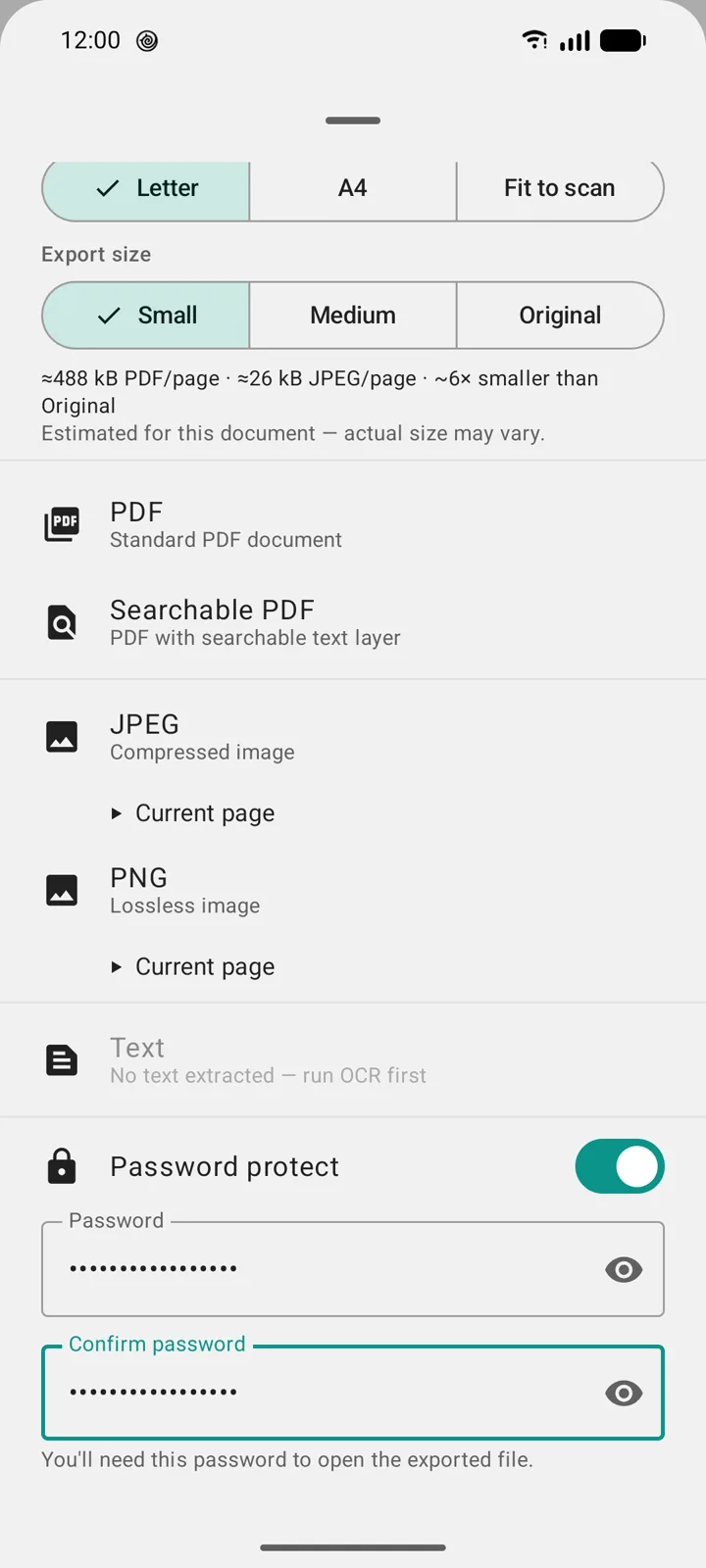
How DocuScanr handles it: exports are encrypted with AES-256 (PDF revision 6), the open password and the owner password are set to the same value so there is no permissions-only mode to strip, and the document metadata is encrypted as well. The encryption is done by qpdf, a widely used open-source PDF library bundled inside the app. The password is used once and wiped from memory; it is never stored. Password-protected export is a Pro feature. If the document is flagged for sensitive content, the export sheet also recommends turning the password on.
Images and text: the encrypted ZIP
Not every export is a PDF, and image and text files have no password feature of their own; a JPEG cannot be locked. The way to protect them is an encrypted ZIP, and ZIP encryption has its own trap: the legacy ZipCrypto scheme that many tools still default to is weak and has been for decades. The format also has a property worth knowing about: file names inside an encrypted ZIP are not encrypted. The contents are protected; the list of names is readable by anyone.
How DocuScanr handles it: with password protection on, JPEG, PNG, and text exports are packaged as AES-256 ZIPs, not ZipCrypto (without a password they are plain image and text files). In an all-pages export the images inside are named Page_1.jpg, Page_2.jpg, and so on. A single-page export and the ZIP file itself take the document title, as any export does, so a document named after its contents announces them in the file name; name it neutrally if that matters.
Opening it later
Password protection is part of the PDF standard, so a recipient needs nothing special: every current PDF viewer, including the ones built into phones and browsers, prompts for the password and opens the file. If you keep protected PDFs yourself, DocuScanr can also import them back into the library (and encrypted ZIPs of page images), asking for the password and decrypting on the device. Importing protected files is a Pro feature; importing ordinary PDFs and images is free.
What password tools quietly get wrong
The upload nobody mentions
Covered above, and worth repeating as the first thing to check with any tool: does the file leave the device before it is protected? For a website, the answer is always yes. For an app, airplane mode settles it.
Restrictions dressed up as protection
Some tools offer no printing and no copying as the headline feature and the open password as an afterthought, or not at all. A document that opens without a password is not protected, however many boxes were ticked.
Legacy ciphers
Older PDF tools and libraries still emit RC4 encryption, and most ZIP tools default to ZipCrypto. Both look identical to strong encryption in a file manager. The only way to know is to check what the tool says it uses, or to open the file in a viewer that reports the security method.
The unprotected original left behind
Protecting the export does nothing for the copies you already have: the original in Downloads, the version attached to an earlier email, or a photographed page in a camera roll that syncs to a cloud account. Our redaction guide covers the copies that never got redacted; the same audit applies here. And note that a password is not redaction. Anyone you give the password to sees everything; if only part of the document should be shared, redact it and then protect the result.
The password in the same message
An encrypted attachment with its password in the body of the email protects the file only from people who cannot read the email, which is nobody who matters. Send the password by a different route: a phone call, a message on another service, or in person.
A short checklist before you send
- The file asks for a password when you open it yourself.
- The password is long, and not one you use anywhere else.
- The password travels separately from the file.
- Anything that should not be seen at all has been redacted, not just locked.
- The unprotected copies on your own phone are accounted for.
Verify, do not trust: turn on airplane mode, export a password-protected PDF, and open it in another app. It asks for the password, and nothing left the phone. Two minutes, and the claim on this page becomes something you checked.