
The short answer
| Redaction method | What a recipient can still get |
|---|---|
| A black box drawn over selectable PDF text | Everything: the text is intact underneath and copies out in one step |
| Text highlighted in black | Everything: a highlight is a transparent layer over intact text |
| A box over a scanned page, exported with the recognition text layer intact | The hidden text layer still carries the value; search finds it behind the box |
| A box exported as a separate annotation layer | Everything: any PDF editor can select and delete the box |
| Redaction composited into the page pixels, with the text layer scrubbed | Nothing: the value is no longer in the file |
That is the two-minute version. The rest of this guide explains why the black box fails so often, where text hides in a scanned document, and how to verify that a redaction actually removed what it covered.
Why the black box fails
A PDF that started life as a text document is not a picture of a page; it is a container of objects. The words are text objects, and anything you draw on top is just another object added to the stack. Put a black rectangle over a line in most PDF editors and the words underneath remain words: select across the box and copy, and they paste out in full. Open the file in an editor and the rectangle can be selected, moved, or deleted like the sticker it is.
This is not a theoretical failure. Improperly redacted filings and reports surface publicly with regularity, from court documents to government releases, and the recovery technique is usually nothing more sophisticated than select all, copy, paste.
Scanned documents start out differently. A scan is a photograph of the page: there are no text objects, just pixels, so covering the pixels really does cover the information. That should make scans the easy case, and it does, except for two modern complications: the text recognition layer, and redactions that export as removable layers instead of being baked in.
The three places text hides in a scanned document
1. The visible pixels
The obvious layer, and the one every tool handles on screen. The question that matters is what happens at export time. If the app stores your black box as a separate annotation and only composites it for display, the exported file is only safe if that composition happens there too. A proper export flattens the box into the image, so the covered region is unrecoverable black in the file a recipient receives.
2. The invisible text recognition layer
A searchable PDF is a sandwich: the page image on top, and an invisible layer of recognized text aligned beneath it. That layer is what makes a scan searchable and selectable, and it is also the layer most redaction workflows forget. Run text recognition on a scan, black out an account number in the image, export, and the number can ride along in the text layer anyway. Search the exported file for it, and the redacted value is right there behind the box.
How DocuScanr handles it: exported pages composite every redaction into the image pixels, and the invisible text layer of an exported PDF drops the words beneath each redaction box at word precision. Covering just the account number in a line removes the number and keeps the rest of the line searchable. Plain text export follows the same rule, and if the text under a redaction cannot be safely filtered, the export withholds that text rather than risk a leak.
3. The copies that never got redacted
Redaction binds one export. The original scan is still in your library, an earlier export may still sit in your Downloads folder or a chat thread, and if your camera roll syncs to a cloud account, a photographed document may already have a second life. Before sharing a redacted copy, it is worth spending a moment on where the unredacted ones are.
What redaction tools quietly get wrong
The box that exports as a removable layer
Some annotation tools keep every mark, including redactions, as a separate layer in the exported PDF. That is convenient for later editing and catastrophic for redaction: the recipient opens the file in an editor, clicks the box, and deletes it. The test is simple. If you can select or move the black box in the exported file, it is a sticker, not a redaction.
Uploading the exact file you are trying to protect
Browser-based redaction tools generally process files on a server. Consider what that means: the document you are redacting is, by definition, the one with a Social Security number or an account number on it, and the first step of the workflow ships the unredacted version to someone else. Whether the service deletes it afterwards is a policy claim you cannot check. Our guide on where scanner apps send your documents covers how to verify this class of claim for any app, and browser-based password tools have the same problem; see how to password protect a PDF on Android without uploading it.
How DocuScanr handles it: scanning, text recognition, sensitive content detection, redaction, and export all run on the phone, so there is no upload step to worry about. That is not a promise; it is a measurement: zero bytes and zero connection attempts, recorded at the operating system level and published with reproduction steps in the network audit.
Missing the second occurrence
Even a technically perfect redaction fails if you miss one. Sensitive numbers repeat: the first page of a statement, the payment stub, a reference line in the transaction table. Humans skim, and the occurrence you did not spot is the one that leaks. This is the least discussed redaction failure and, in practice, one of the most common.
Redaction that finds the values for you
DocuScanr approaches the problem from both ends. Documents are scanned for sensitive content entirely on the device: Social Security numbers, credit card numbers, bank account numbers, and passport numbers, plus phone numbers and email addresses. The scan is off by default; turn on Sensitive Content Warnings in Settings to enable it. Detection is validation-backed rather than naive pattern matching (card numbers must pass the checksum real cards use, Social Security numbers must have a structure that could actually be issued), so a random string of digits does not usually light up a warning.
As of version 1.27.0, a flagged document offers Review & Redact. The app rescans the document with the position of every recognized word, then presents a checklist grouped by page. Each detected item shows its type and a masked preview, such as ***-**-6789; the full value is never displayed on screen.
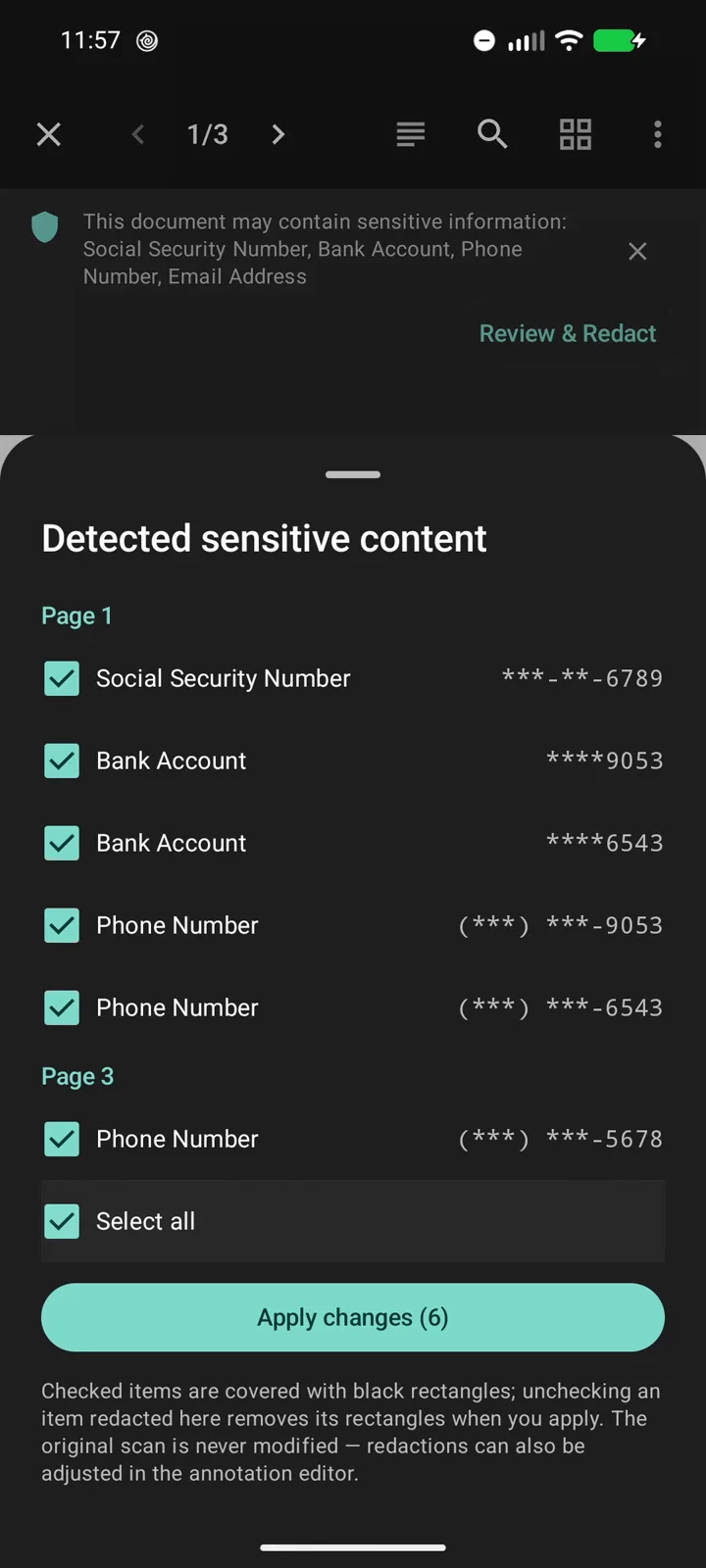
New detections start unchecked; nothing is redacted until you choose the items and apply. The app then draws a redaction box over every occurrence of each selected item, each occurrence separately, so the account number that appears four times gets four boxes. The boxes are ordinary redaction annotations: adjust, resize, or remove any of them in the editor before you export.
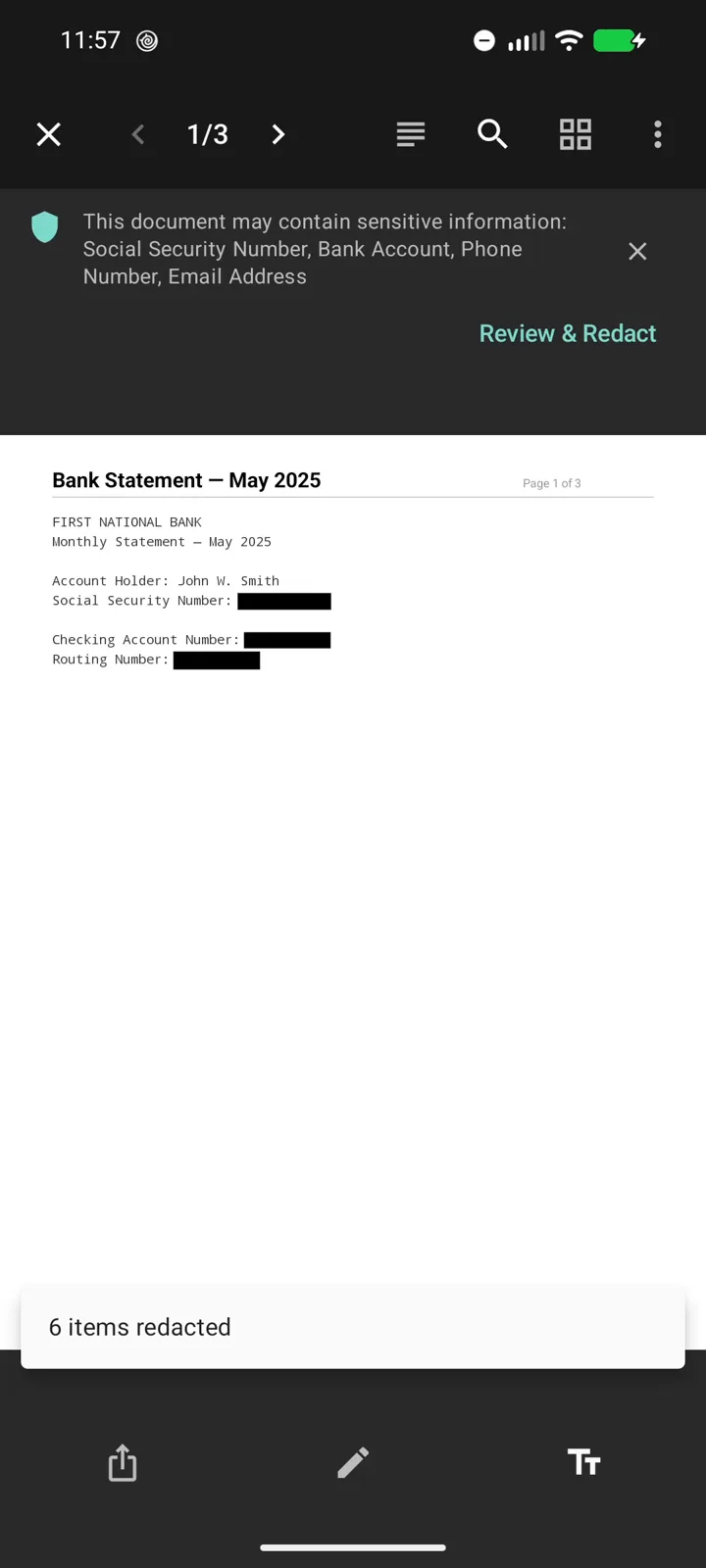
The export guarantee is tested end to end. An automated test redacts every detected value on a seeded page of card numbers, composites the result exactly the way a real export does, then runs text recognition over the redacted pixels. The test fails if a single card number, or even a stray digit group, survives.
Verify, do not trust: like everything else in DocuScanr, detection and redaction work in airplane mode. Turn connectivity off, run Review & Redact, and export. Nothing changes, because nothing ever left the phone.
How to verify a redaction actually worked
- The copy and paste test. Open the exported file, select all, copy, and paste into a notes app. Read what pasted: if any redacted value appears, the text layer leaked.
- The search test. Search the exported PDF for a fragment of the value, such as the last four digits. Search reads the text layer, so it finds values hiding behind black boxes.
- The editor test. Open the export in a PDF viewer and try to select or move the black box itself. If the box is a movable object, the redaction rides on a layer a recipient can remove.
- The completeness pass. Page through the whole export once, looking only for repeats of the values you redacted. Statements and forms repeat critical numbers in headers, stubs, and reference lines.
Two minutes, and redaction goes from a hope to a checked result.