
The short answer
| What a real backup needs | Why it matters |
|---|---|
| One archive of the whole library, not a pile of exported PDFs | Exports drop folders, tags, editable annotations, and the searchable text; an archive restores all of it in one step |
| Encryption applied before the file leaves the phone | A backup of sensitive paperwork is a copy of sensitive paperwork; wherever it lands, it should be unreadable without the key |
| The key stored somewhere other than next to the file | An encrypted archive without its key is unrecoverable; a key beside the archive protects nothing |
| A copy that is not on the phone it protects | A backup that lives only on the phone is lost with the phone |
| A verified restore, or at least a verify step, before you need it | The only proof a backup works is opening it; corrupted copies and mistyped keys look identical to good ones until then |
| A schedule | Anything scanned after the last backup is not in it |
That is the two-minute version. The rest of this guide explains why Google's own transfer tools skip this kind of data, what belongs in the archive, where to keep it, and the exact steps for moving a library to a new phone.
Why the new phone came up empty
Android offers two ways to carry app data to a new device: Google cloud backup, which copies app data to your Google account in the background, and device-to-device transfer, which copies it over a cable or Wi-Fi during setup. Both feel complete. The new phone has every app, signed in, with settings intact, so it is reasonable to assume the documents came along too.
They often did not, and the reason is deliberate. Every Android app declares whether its data may be included in those transfers, and apps that encrypt their data at rest usually exclude it. The encryption keys for an app like that live in the hardware keystore of the old phone and cannot leave it, so a copied database would be unreadable on arrival. Beyond that, the whole point of a privacy-first scanner is that the documents do not get copied into a cloud account, including Google's. So the transfer restores the icon and nothing else.
This is worth knowing in the other direction too. If a scanner app's documents did survive a Google transfer, it tells you they were stored in a way that Google's backup could read.
How DocuScanr handles it: DocuScanr excludes all of its data from Google cloud backup and from device-to-device transfer, on purpose. Document files and the library database are encrypted with keys held in the device's hardware keystore, which never leave the device, and copying encrypted documents into a Google account would contradict the reason the app exists. The app's own encrypted backup is the one path to a new phone, and everything below is built around making that path reliable.
What a backup of scanned documents needs to contain
The instinct is to export everything as PDF and call that the backup. It is better than nothing, but it is not a backup of your library; it is a snapshot of the pages. Exported PDFs lose the folder structure, the tags, annotations as editable objects, per-document settings, and usually the recognized text that made your scans searchable. Rebuilding that on a new phone means re-filing and re-recognizing every document. And a folder of exported PDFs is, by definition, a folder of unencrypted copies of your most sensitive paperwork.
A real backup is a single archive of the whole library, encrypted end to end, that a fresh install can open and turn back into the library you had. When you evaluate any scanner's backup feature, the questions are: is it one file or many, does it include organization and annotations, and is it encrypted before it is written?
How DocuScanr handles it: a backup is one .docuscanr file containing every document and page image, folders, tags, annotations, saved signatures, per-document watermarks, the recognized text for each page, and your app preferences. The archive is encrypted with AES-256-GCM, and the key that opens it is derived from your recovery key (PBKDF2 with 600,000 rounds, then HKDF), so it is unreadable without that key wherever it is stored. Android's file manager may label the file a BIN file; that is normal.
The two-things rule: the file and the key
An encrypted backup has two halves, and you need both. The file holds the documents. The key opens the file. Lose the file and the key has nothing to decrypt; lose the key and the file is permanently sealed. This sounds obvious, and yet the most common failed restore is a perfectly good archive and a key that was never written down.
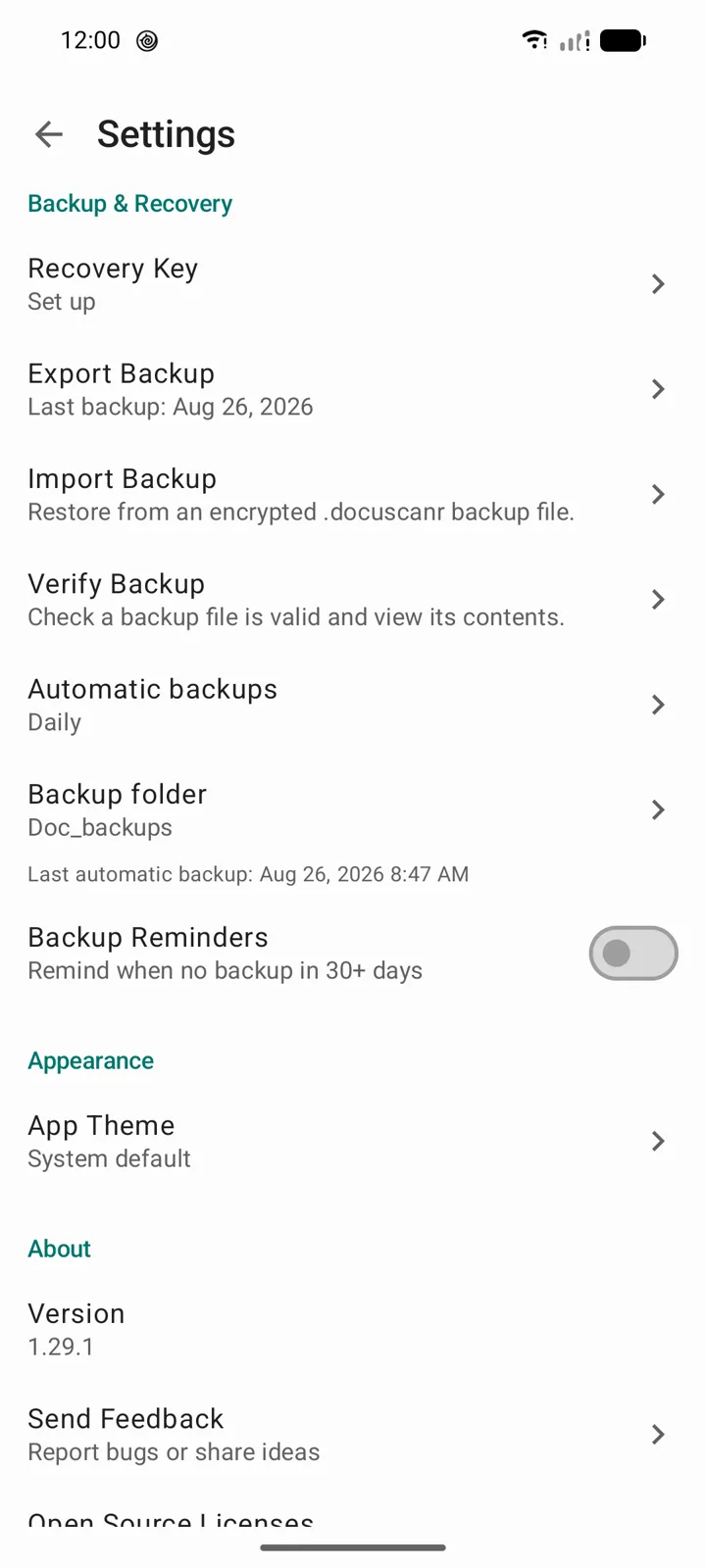
Where the key lives is a security decision as much as a memory aid. A password manager is ideal. Paper in a place you would keep a passport is fine. What it must not be is a screenshot in the camera roll (camera rolls sync to cloud photo libraries by default on most phones), a note in the same cloud folder as the backup file, or a text message to yourself. The key and the file should never be findable in the same place.
How DocuScanr handles it: the recovery key is a 28-character code shown once when you set it up, and it is required before the app will create a backup at all, so there can never be an archive with no key to open it. The same key opens every backup made under it, manual or automatic. The key is never stored inside the archive and we never see it. If you regenerate the key, archives made under the old key still need the old key, so make a fresh backup right after regenerating. Our support FAQ covers the recovery key in more detail.
Where to store the backup file
The copy on the phone does not count. Phones are lost, stolen, dropped in water, and factory reset by a well-meaning shop, and a backup that dies with the device is not a backup. An SD card inside the phone is only slightly better, because it leaves with the phone. You want at least one copy somewhere else, and for documents you genuinely cannot replace, two.
Practical options, roughly in order of effort:
- A computer, over USB. The simplest second location. Copy the archive into a folder you already back up.
- A USB drive or SD card kept somewhere else. Cheap, offline, and immune to account problems. The drawback is remembering to update it.
- A cloud drive you control. Convenient and automatic, and safe for an archive that was encrypted before upload: the provider holds ciphertext it cannot open. Note the distinction from a cloud-first scanner, where the provider holds the readable documents and the account that controls them.
Keep more than one generation. If the newest archive turns out to be corrupted, the one before it is worth a great deal. Two or three is plenty; date them, and delete older ones as you go.
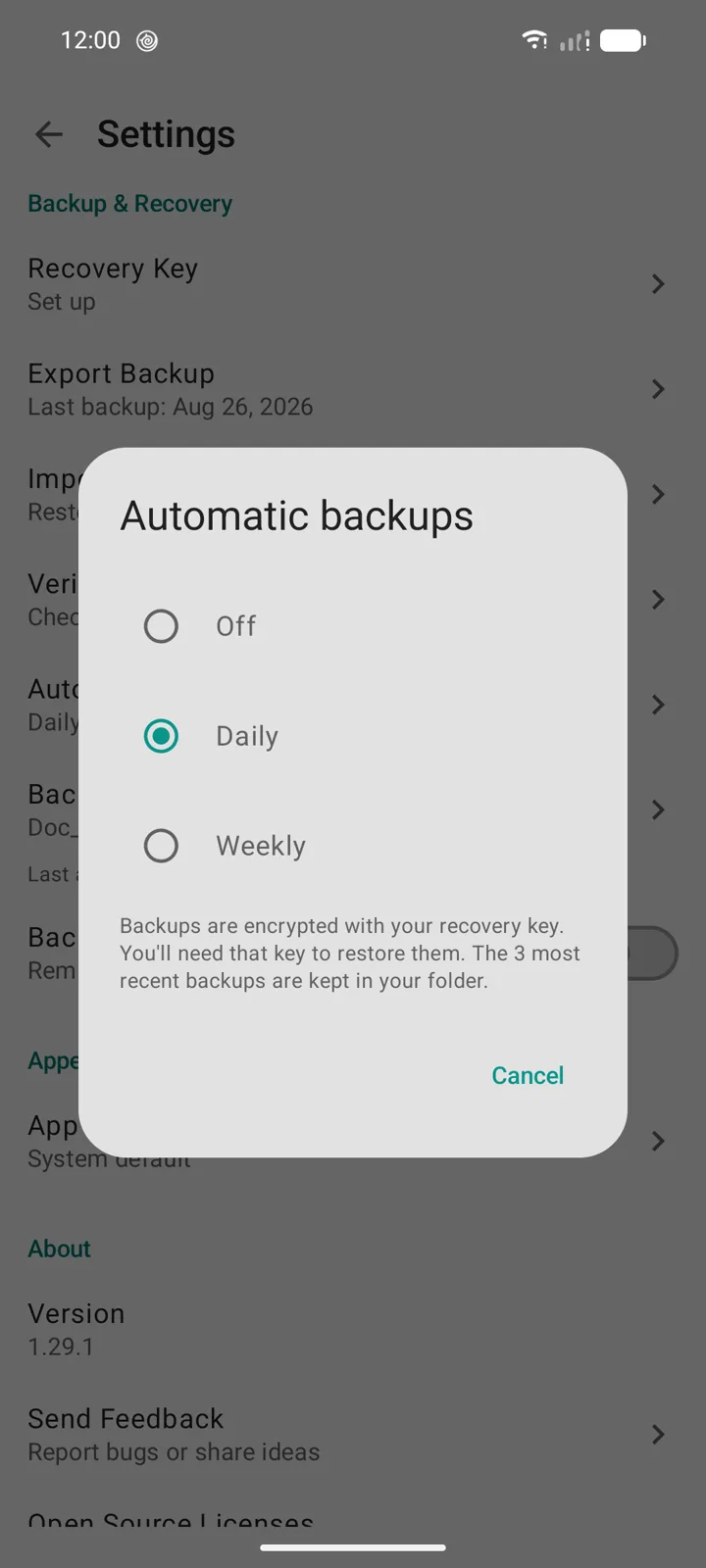
How DocuScanr handles it: a manual backup is saved wherever you point the Android file picker, which includes internal storage, an SD card, a USB drive, or a cloud provider's folder. Pro adds automatic backups: choose a folder and a cadence (daily or weekly) and the app writes a fresh encrypted archive there when you open it after the interval has passed, keeping the three most recent and rotating older ones out. Same file format, same recovery key, no background service and no notifications. Each automatic archive is written to a temporary name and renamed only when complete, so an interrupted backup can never pass for a finished one, and if the folder disappears (an ejected card, a revoked permission) the app tells you rather than failing silently. Manual export, verify, and restore stay free.
How often to back up
The honest rule is: after anything you would be upset to lose, and on a schedule regardless. A library of receipts might be fine monthly. A library that holds contracts, identity documents, and medical records deserves weekly, or an automatic schedule so it does not depend on you remembering. The question to ask is how much re-scanning you could tolerate, because everything scanned since the last backup is exactly what you would have to redo.
How DocuScanr handles it: Settings shows the date of the last backup, and an optional reminder banner appears when no backup has been made for 30 days. With automatic backups on, a successful run quiets the reminder on its own.
Test the restore before you need it
A backup you have never opened is a hope, not a plan. Files get corrupted in transfer, copies get truncated when a drive fills up, and keys get mistyped when they are written down. None of that is visible from the file size or the date. The only proof is opening the archive with the key and seeing the contents listed.
Do this at two moments: right after creating a backup, and again after copying it to its storage location. Verify the copy, not the original. The copy is the one you will need.
How DocuScanr handles it: Verify Backup opens an archive with your recovery key without touching your current library and reports what it contains: documents, pages, folders, tags, annotations, watermarks, signatures, the creation date, the file size, and the format version. It checks the key against the archive header (a mistyped key is rejected up front) and decrypts the archive manifest; it does not read every page image, so treat it as proof that the file is the right one and opens with your key, not as a byte-for-byte integrity check. That deeper check happens during restore: the archive is authenticated encryption, and a restore that hits damaged data stops before it replaces anything. Verify is free, and it works on automatic backups too.
Moving to a new phone, step by step
- Make a fresh backup on the old phone and copy it off the device: to a computer, a card, or your cloud drive. Confirm you have the recovery key written down. Verify the copy.
- Install the app on the new phone. If you own Pro, sign into the same Google Play account and tap Restore Purchases in Settings; the purchase is tied to the account, not the device.
- Get the archive onto the new phone, or skip this step if it is on a cloud drive: the file picker can open it from there directly.
- Verify first. Settings, Backup & Recovery, Verify Backup: choose the file and enter the key. Check that the document and page counts match what you expect.
- Import Backup. Choose the same file, enter the key, and confirm. Restoring replaces everything currently in the app on that phone, which on a fresh install is nothing. If you have already scanned a few things on the new phone, export them first. The app restarts when the restore completes.
- Set up the new phone's own safeguards. Three things are deliberately not carried inside a backup because they are bound to the device: app lock, the recovery key, and the automatic backup folder. Turn app lock back on. Set up a recovery key on the new phone (Settings shows it as not set up after a restore); the old key still opens the archives made on the old phone and the new key opens everything from here on, so keep both written down until the old archives are superseded. If you use automatic backups, choose the folder again.
- Only now wipe the old phone. Keep it intact until you have opened a few documents on the new one.
The same steps, minus the new device, are how you recover after a reinstall or a factory reset.
What backup tools quietly get wrong
The backup that is really a sync
Cloud-first scanners describe their account sync as backup, and in one sense it is: the documents survive the loss of the phone. But the copy lives readable on the company's servers, is tied to an account that can be locked or closed, and getting a complete library out again is often a document-at-a-time export, sometimes behind a subscription. You have a backup of your documents in roughly the way a bank has a backup of your money. Our guide on where scanner apps send your documents covers how to tell which kind of app you are using.
The unencrypted export
A full-library export as a plain zip or a folder of PDFs is a plaintext copy of everything you were careful to keep private, and Downloads folders are exactly the kind of place phones sync to cloud storage without asking. If a backup is not encrypted before it is written, where it ends up is no longer entirely your decision. If a single export has to travel, password protect it on the phone first.
The key kept beside the file
A screenshot of the recovery key in the camera roll, or a text file in the same cloud folder as the archive, undoes the encryption for anyone who reaches that folder. Encryption only protects a backup when the key travels separately.
The backup nobody ever opened
Most backups are opened for the first time on the worst day. Tools that offer no way to check an archive short of a full restore push that first opening to the one moment when a failure costs the most.
Verify, do not trust: DocuScanr's backup runs entirely on the phone, like everything else in the app, and you can prove it in airplane mode: turn connectivity off, export a backup, verify it, and restore it. Nothing changes, because nothing ever left the device. The published network audit measured launch, scanning, and sustained text recognition at the operating-system level (zero bytes, zero connection attempts); backup was not part of that run, which is exactly why the airplane-mode check is worth doing yourself.